

 br
br

Learn How
 Keep Scrolling
Explore por tópico
How to Make a One-Time Payment
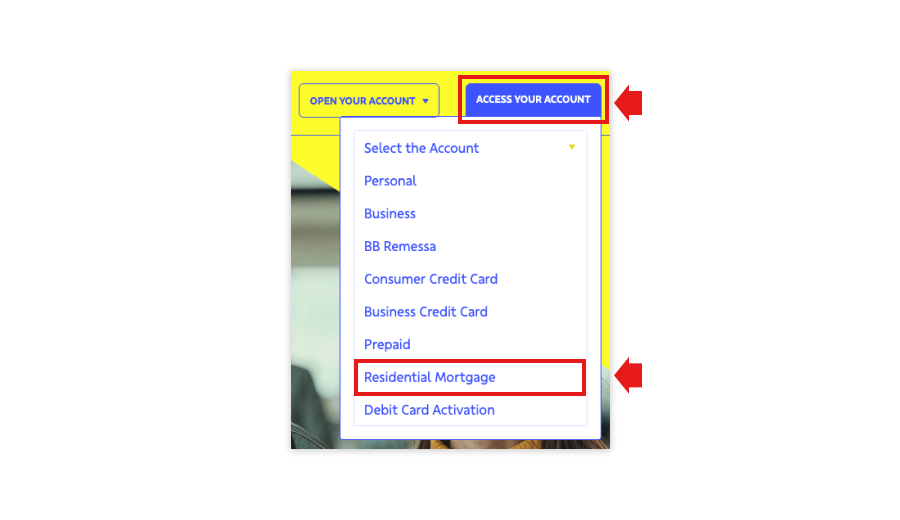
1. To access the Residential Loan Portal, visit our website and click “ACCESS YOUR ACCOUNT”, selecting “Residential Mortgage” from the dropdown menu, or access the portal directly by clicking on the link: https://bbamericas.yourmortgageonline.com.
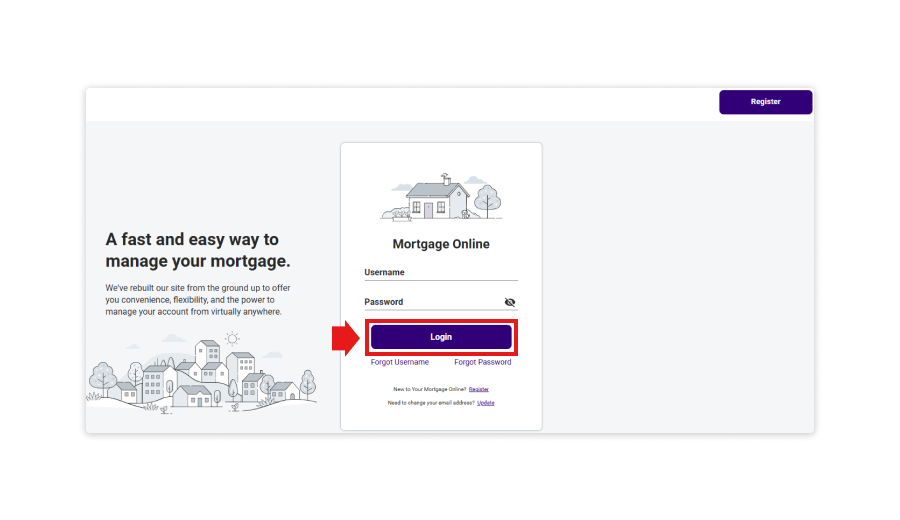
2. Click “Login”.
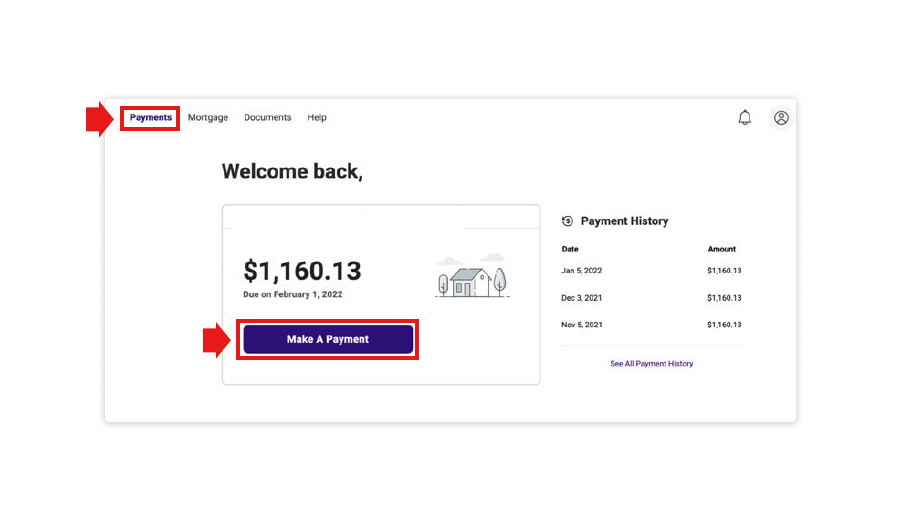
3. On the main menu, at the top of the screen, select the “Payments” option and click “Make A Payment”.
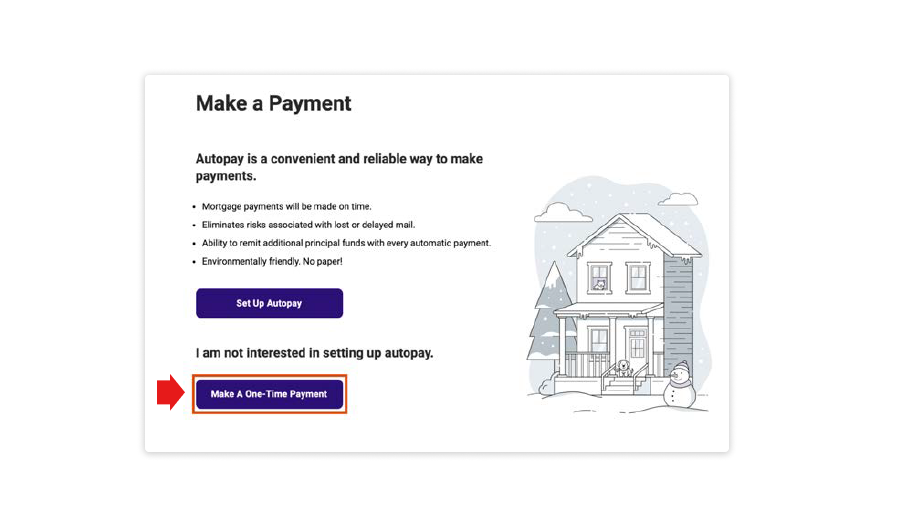
4. Select “Make A One-Time Payment”.
Important:
Payments are processed throughout the day. Any payment submitted prior to 12:00 a.m. Central Time will be effective on the date the payment was submitted. Only one payment can be submitted on a loan on any given day.
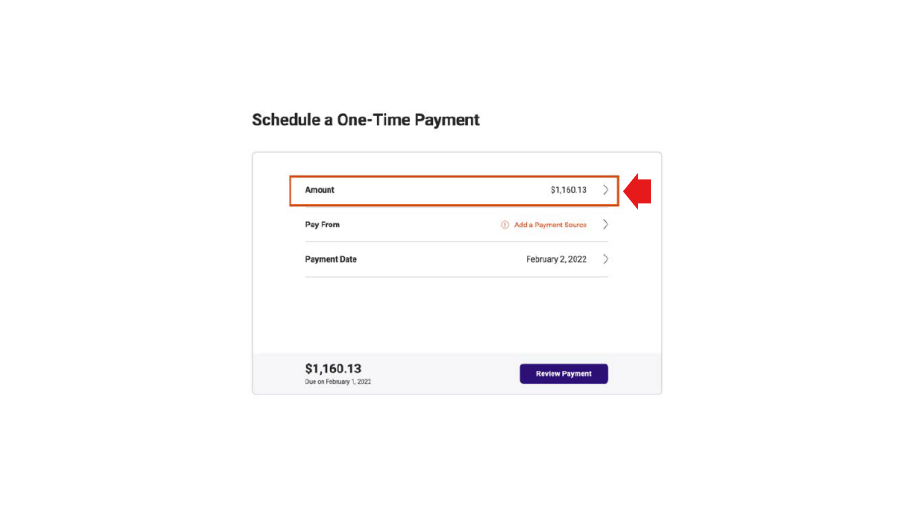
5. On the “Schedule a One-Time Payment” screen, select the “Amount” line to open the “Edit One-Time Payment Amount” screen. The regular monthly payment amount will be pre-populated.
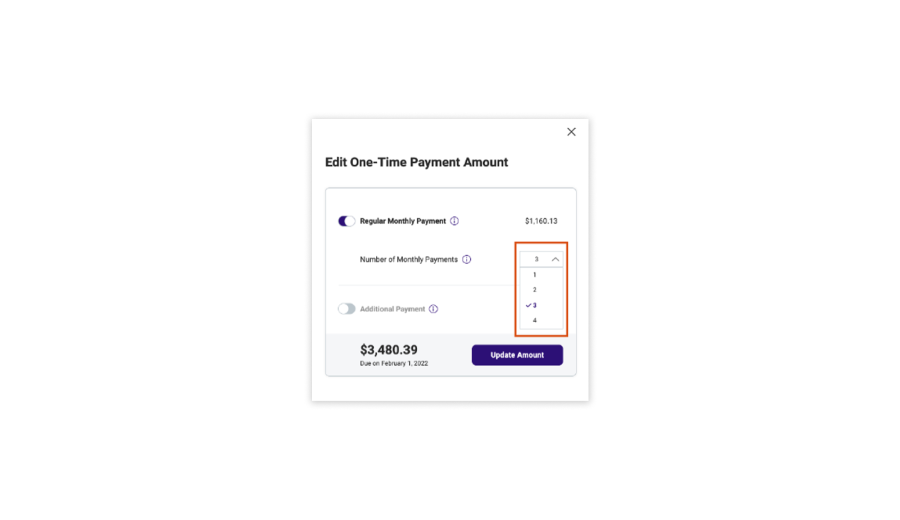
6. On the “Edit One-Time Payment Amount” screen, there are several options available. The regular monthly payment can be scheduled to repeat for up to four consecutive months.
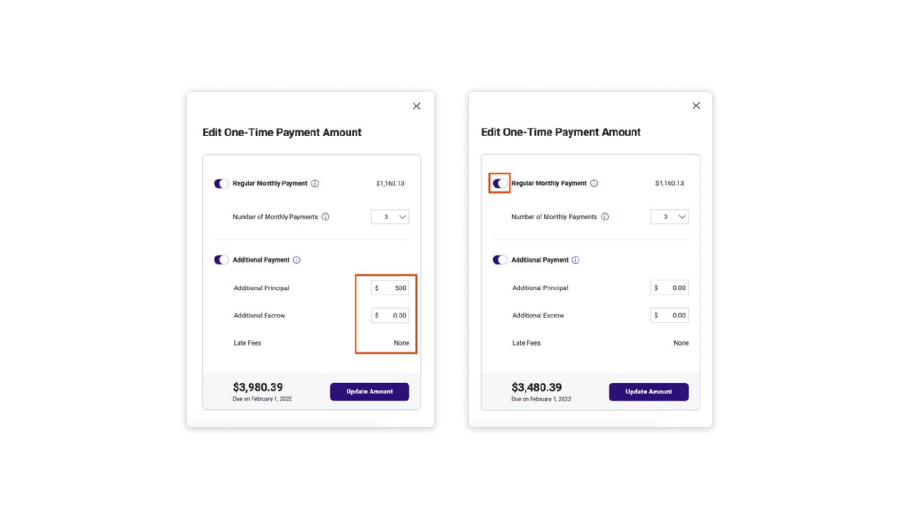
a. Additional funds can also be added to the regular monthly payment by turning on the “Additional Payment” switch. Select “Additional Principal”, “Escrow”, or “Late Fees” (if applicable), and an amount greater than zero should be entered. An additional payment only can be made by turning off the “Regular Monthly Payment” switch.
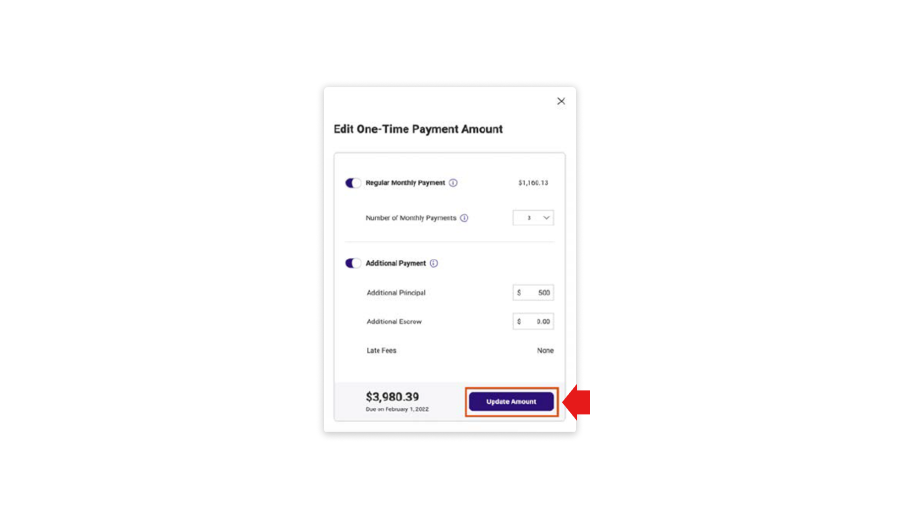
7. Once all payment updates are completed, click the “Update Amount” button at the bottom to return to “Schedule a One-Time Payment” screen. The new amount will be reflected here.
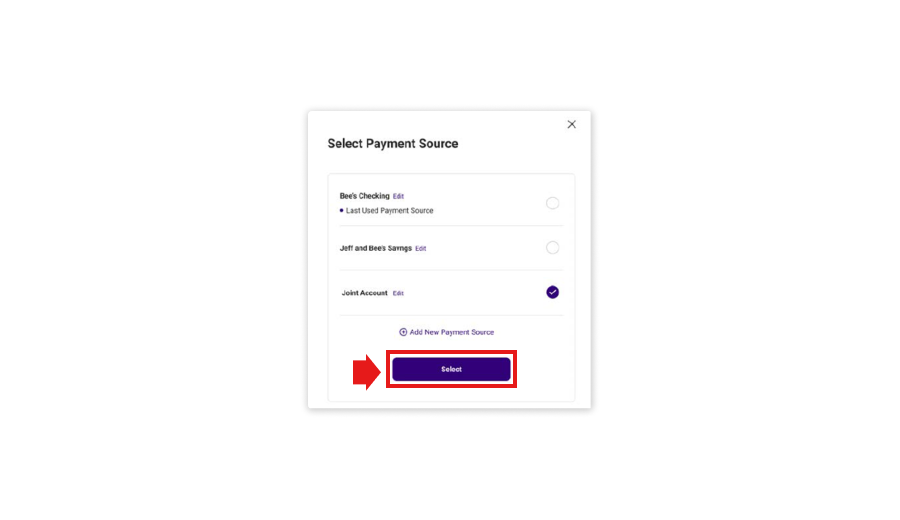
8. On the “Schedule a One-Time Payment” screen, select the “Pay from” line to add a payment source.
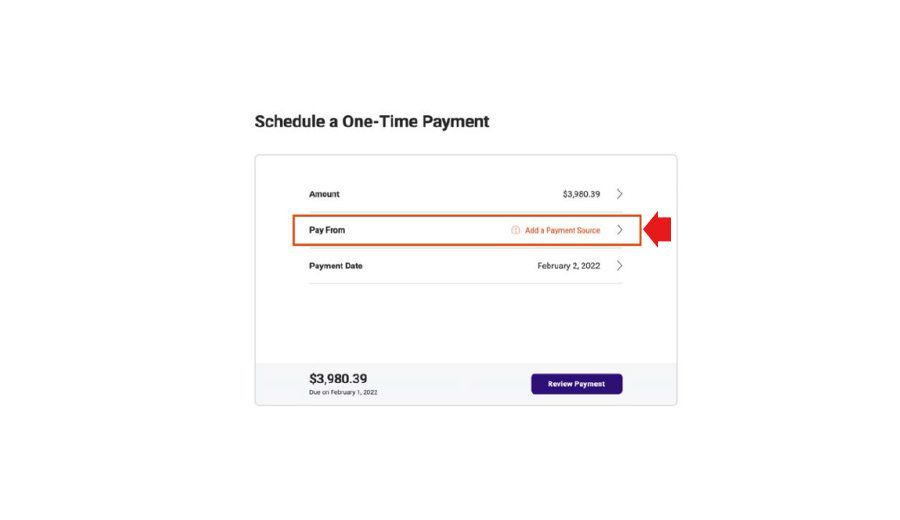
a. If a payment source has been previously added, it can be selected from the saved accounts.
b. If no payment source has been previously added, bank account information must be entered by completing the fields below with the account details for the payment source.
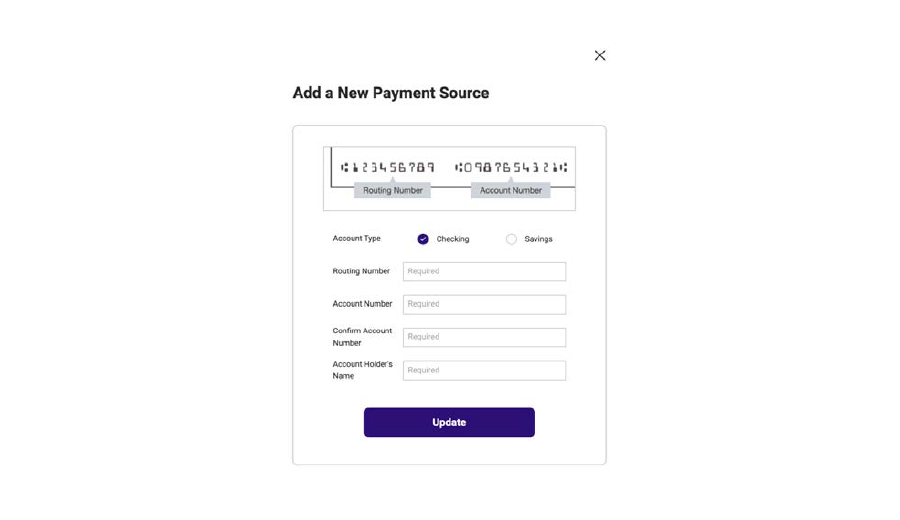
Note: Once a payment source has been added, the new payment account information will be reflected on the Schedule a One-Time Payment screen. For later payments, the bank account information of the previous payment is saved on the website.
9. After completion of the payment source information, the “Payment Date” line can be selected on the “Schedule a One-Time Payment” screen to change the date the payment will take effect. Select the desired date from the calendar and click “Select Payment Date”.
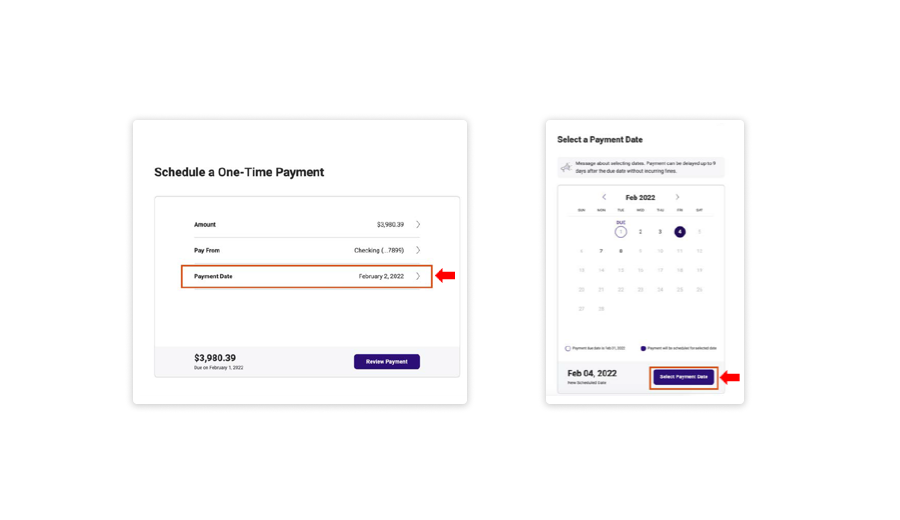
10. Once all changes have been made on the Schedule a One-Time Payment screen, click “Review Payment” to proceed.
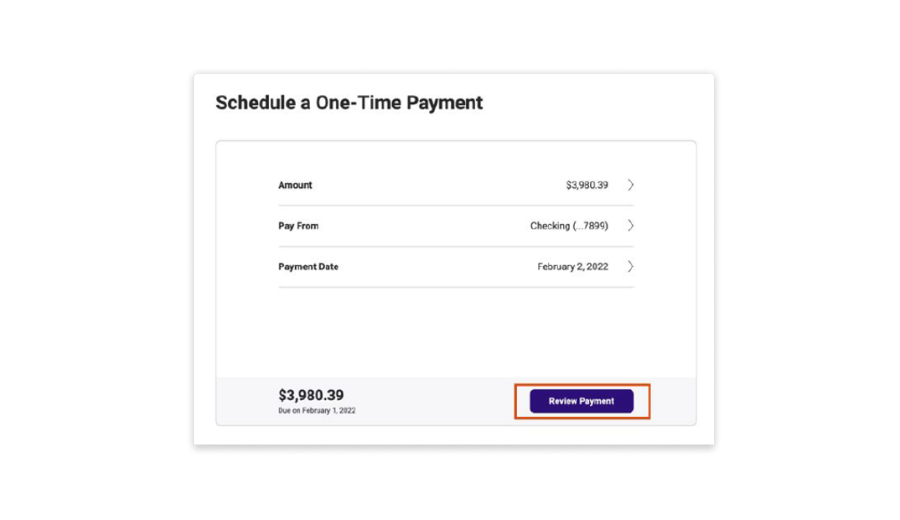
11. Review all payment information, and if everything is correct, click “Pay Now”.
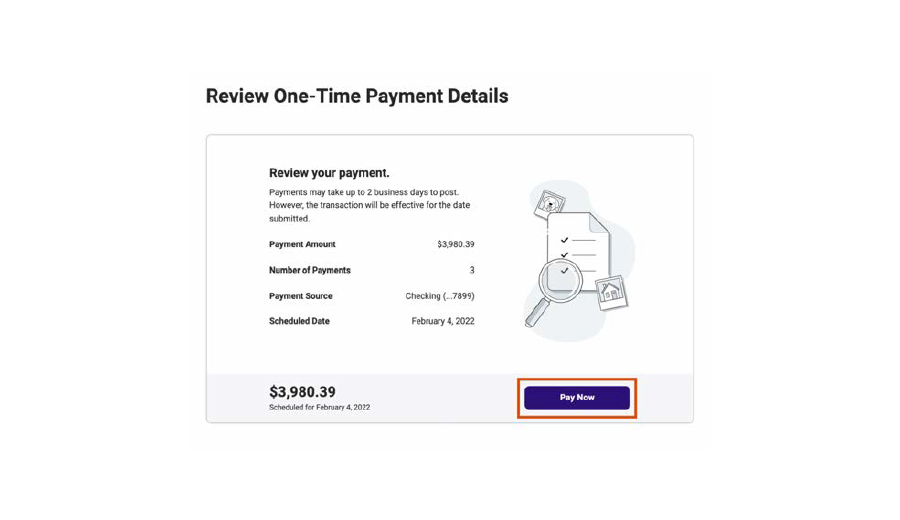
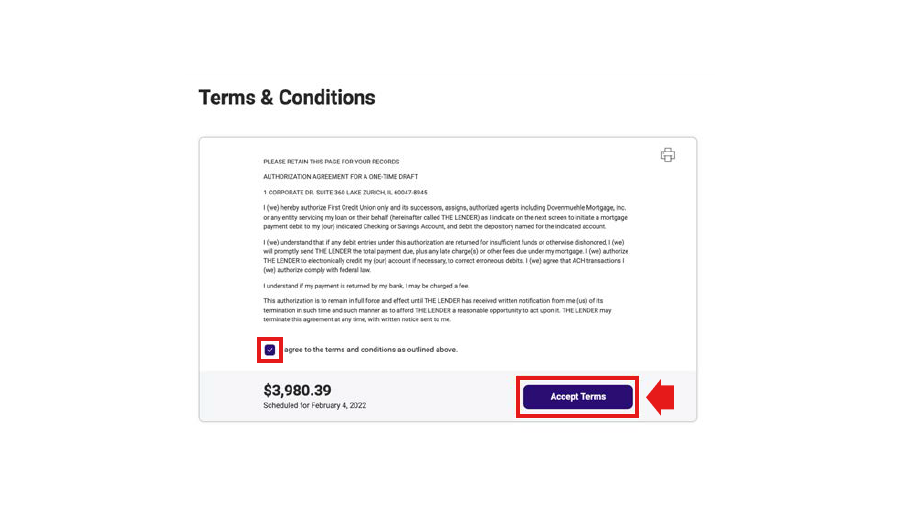
12. The terms and conditions must be accepted in order to set up the payment. The checkbox at the bottom of the screen must be selected, and the “Pay Now” button must be clicked to complete the payment setup. Then click “Accept Terms”.
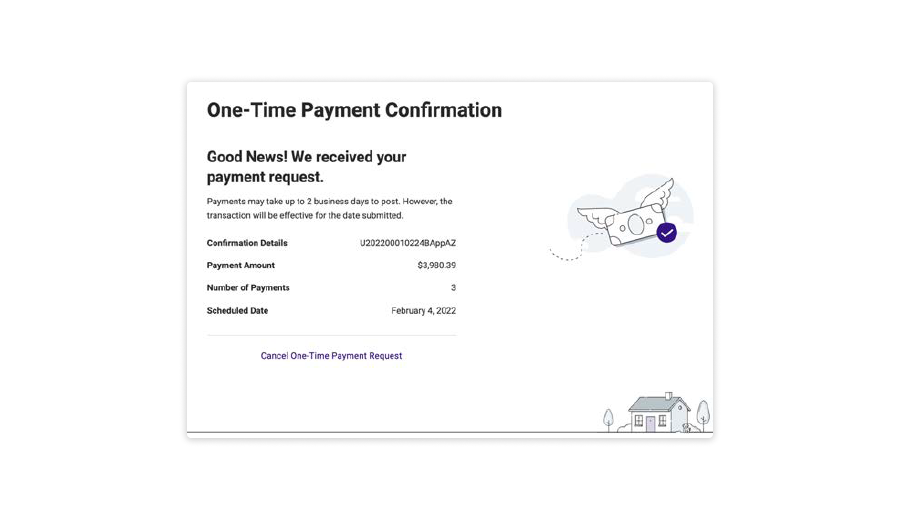
13. A message will be displayed on the “Payment Confirmation” screen confirming that the request to schedule a one-time payment has been successfully submitted.
Keep Scrolling