br
br

Learn How
 Keep Scrolling
Explore por tópico
How to View Balances and Transactions in the BB Americas Bank App
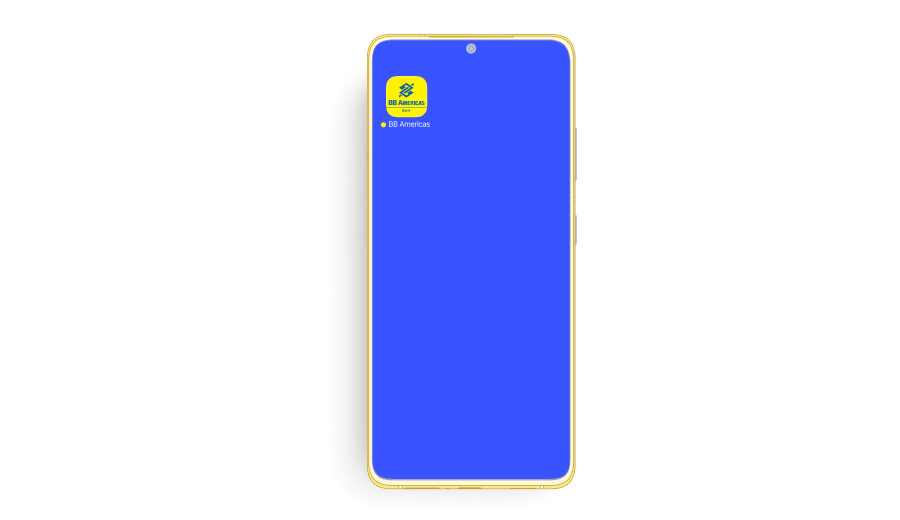
1. Open the “BB Americas Personal” Mobile App.
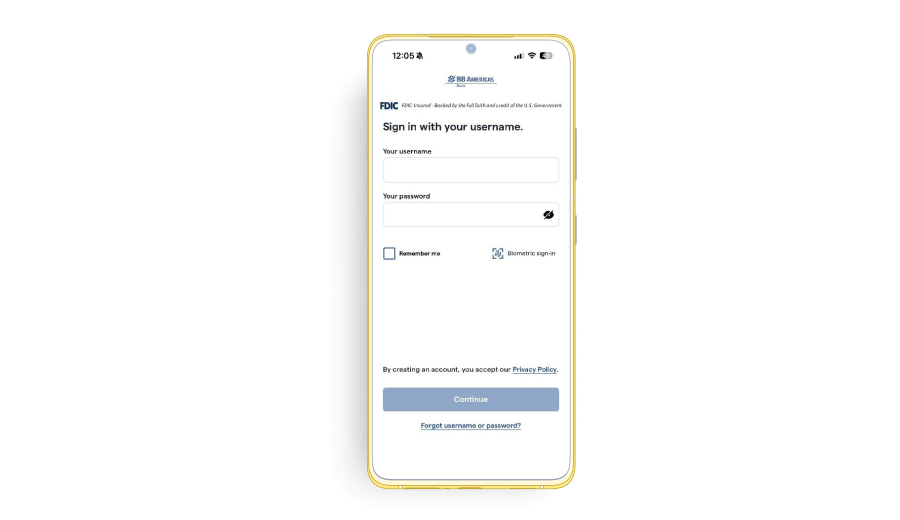
2. Enter your “Username” and “Password”. Click “Continue”.
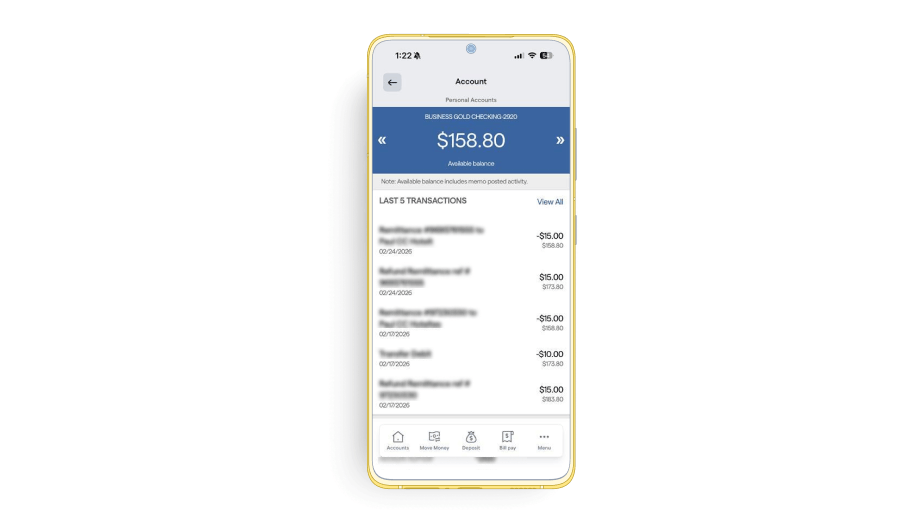
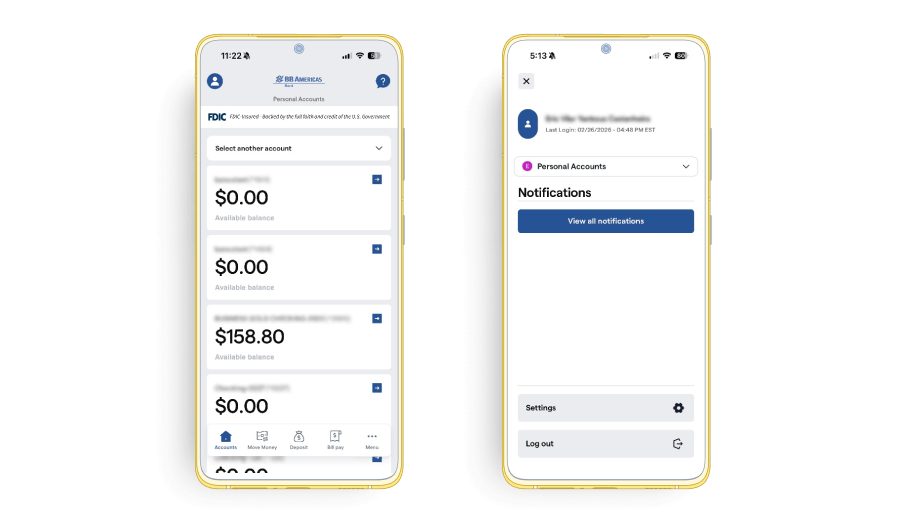
3. The main page will display your account balance(s) identified by account type and the last 4 digits of the account number.
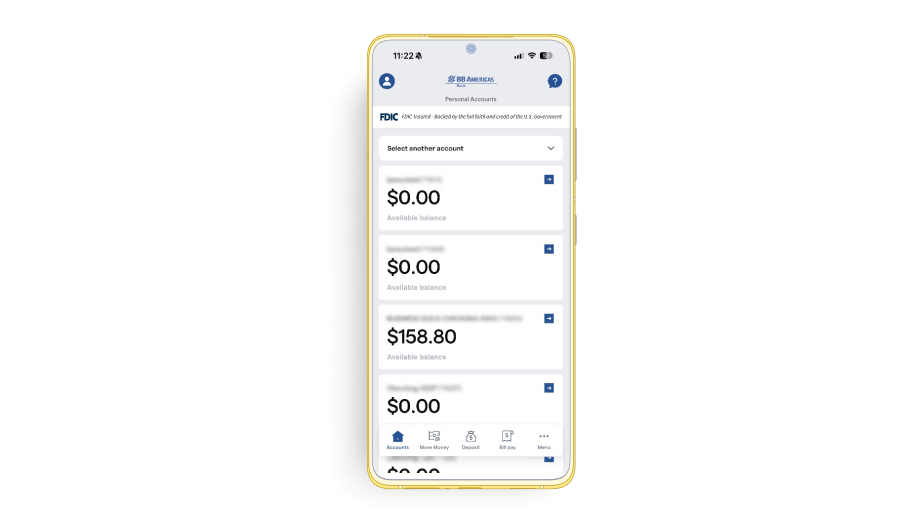
4. To view transactions by account, click on the account of your choice. If you have multiple accounts, click “Select another account” to choose another account to view.
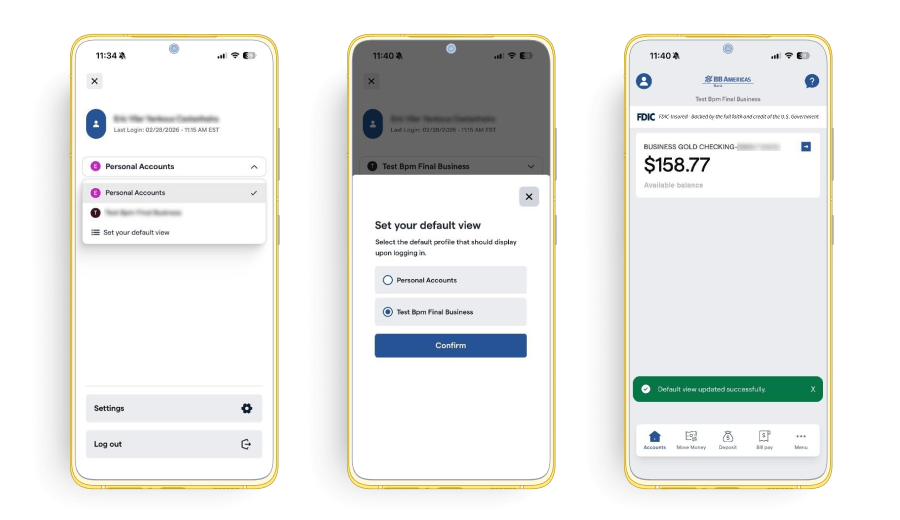
5. If you want to view accounts from your business portfolios, go to “Profile” on the top left. Then, from the dropdown menu, select the business portfolio you want to view the accounts for.
6. Now select the company you would like to view the accounts, and you will be redirected to the accounts page showing the corresponding company’s accounts.
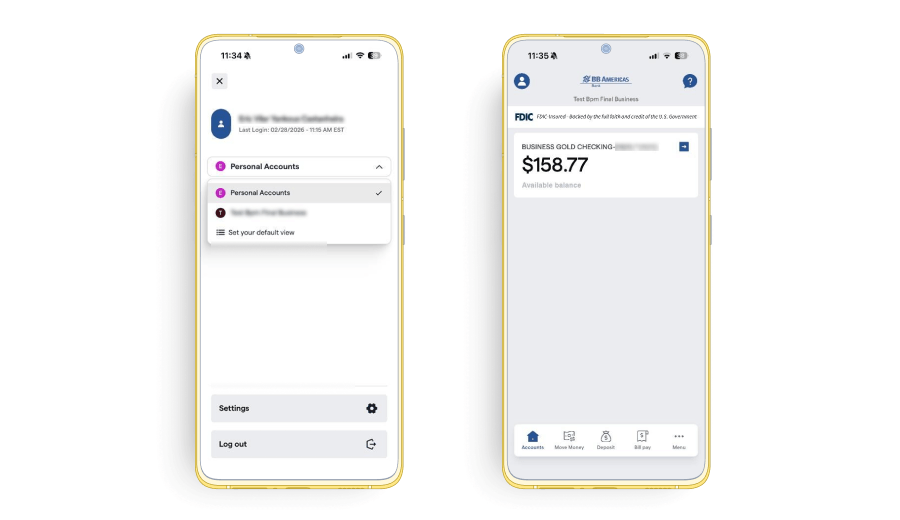
Note: You can also change the default portfolio view. Select “Set your default view” and choose the portfolio you would like to view by default when you log into the BB Americas Personal Mobile App. A success message will appear.